

How to Connect MuleSoft Anypoint to an API Marketplace (2026 Guide)
Your MuleSoft APIs power critical integrations, but developers outside Anypoint rarely find them. This guide shows you how to link Anypoint Platform to your API marketplace using a read-only Connected App. You will learn how to pick a matching Business Group and Environment pair, where to find each ID, and how to fix common connection errors.


TL;DR: To connect MuleSoft Anypoint to an API marketplace, you need four values. These are the Anypoint Platform Base URL, a Business Group (Organization) ID, a matching Environment ID and credentials. A Connected App with the read-only Exchange Viewer scope is the best credential. In DigitalAPI, open Manage API Sources, click the MuleSoft tile, fill in the form, click Test connection, then Save.
The average organization runs 991 applications but integrates only 28% of them, according to MuleSoft’s 2024 Connectivity Benchmark Report. Your Anypoint APIs often power that integration layer. Yet developers outside the Anypoint organization rarely find them. The most common setup error is small but costly: a Business Group ID and Environment ID that don’t belong together. This guide shows you how to get every value right the first time.
What does it mean to connect MuleSoft Anypoint to an API marketplace?
A gateway connection is a saved, read-only link between your API marketplace and one Anypoint business group and environment. It lets the marketplace read the APIs you have registered there. It does not proxy traffic, and your APIs stay on Anypoint Platform.
Here is what the connection does and does not do:
- It reads one Business Group and one Environment, picked as a matching pair.
- It authenticates with a Connected App (Client ID and Secret) or a username and password.
- It stores your credentials encrypted at rest.
- It does not import APIs when you save it. You run the import as a separate step. See Importing APIs.
Is a MuleSoft Anypoint connection right for you?
This is right for you if:
- Your APIs are registered on MuleSoft Anypoint Platform and you want them in one developer portal.
- You can create a Connected App, or a dedicated service user, in Access Management.
- You want MuleSoft APIs to sit next to APIs from your other gateways.
This is not right for you if:
- Your API specs live only in GitHub, Bitbucket or Postman. Use a documentation source instead.
- Your APIs run on AWS API Gateway or Azure API Management. Use the AWS API Gateway connection guide or the Azure API Management connection guide.
What do you need to connect MuleSoft Anypoint to the API marketplace?
You need a Base URL, a matching Business Group and Environment ID pair, and one set of credentials. Pick either a Connected App or a username and password.
How do you set up a read-only Connected App in Anypoint?
Create a Connected App that acts on its own behalf and grant it one read-only scope, Exchange Viewer. A Connected App is the better choice for a service integration. You can audit and revoke it on its own, and it does not depend on any one person’s login.
- In Anypoint Platform, go to Access Management > Connected Apps > Create app.
- Give the app a name.
- Choose App acts on its own behalf (client credentials).
- Grant a single read-only scope, Exchange Viewer, for the environments you will import.
- Save the app, then copy the Client ID and Client Secret.
Least privilege matters here. Stolen credentials were the top initial action in breaches, at 24%, according to the Verizon 2024 Data Breach Investigations Report. The IBM Cost of a Data Breach Report 2024 puts the average breach at $4.88 million.
What if you use a username and password instead?
Use a dedicated service user, not a personal login. Create it under Access Management > Users. A platform username and password also works. A service user keeps the connection from breaking when one person leaves or changes a password.
Where do you find each MuleSoft value?
Every ID comes from Access Management in Anypoint Platform. The Business Group ID and Environment ID are independent, so make sure you pick a matching pair.
Anypoint Platform Base URL: Use https://anypoint.mulesoft.com with no trailing slash. If your tenant runs on the EU control plane, use https://eu1.anypoint.mulesoft.com instead.
Business Group (Organization) ID: Go to Access Management > Business Groups and choose the organization. Open the Settings tab and copy the Business Group ID.
Environment ID: Go to Access Management > Environments, select the environment and copy its ID. You can also find it in API Manager under the environment info.
How do you add the MuleSoft connection, step by step?
Open Manage API Sources, click the MuleSoft tile, fill in the form, test, then save. Once your values are ready, the form takes a few minutes.
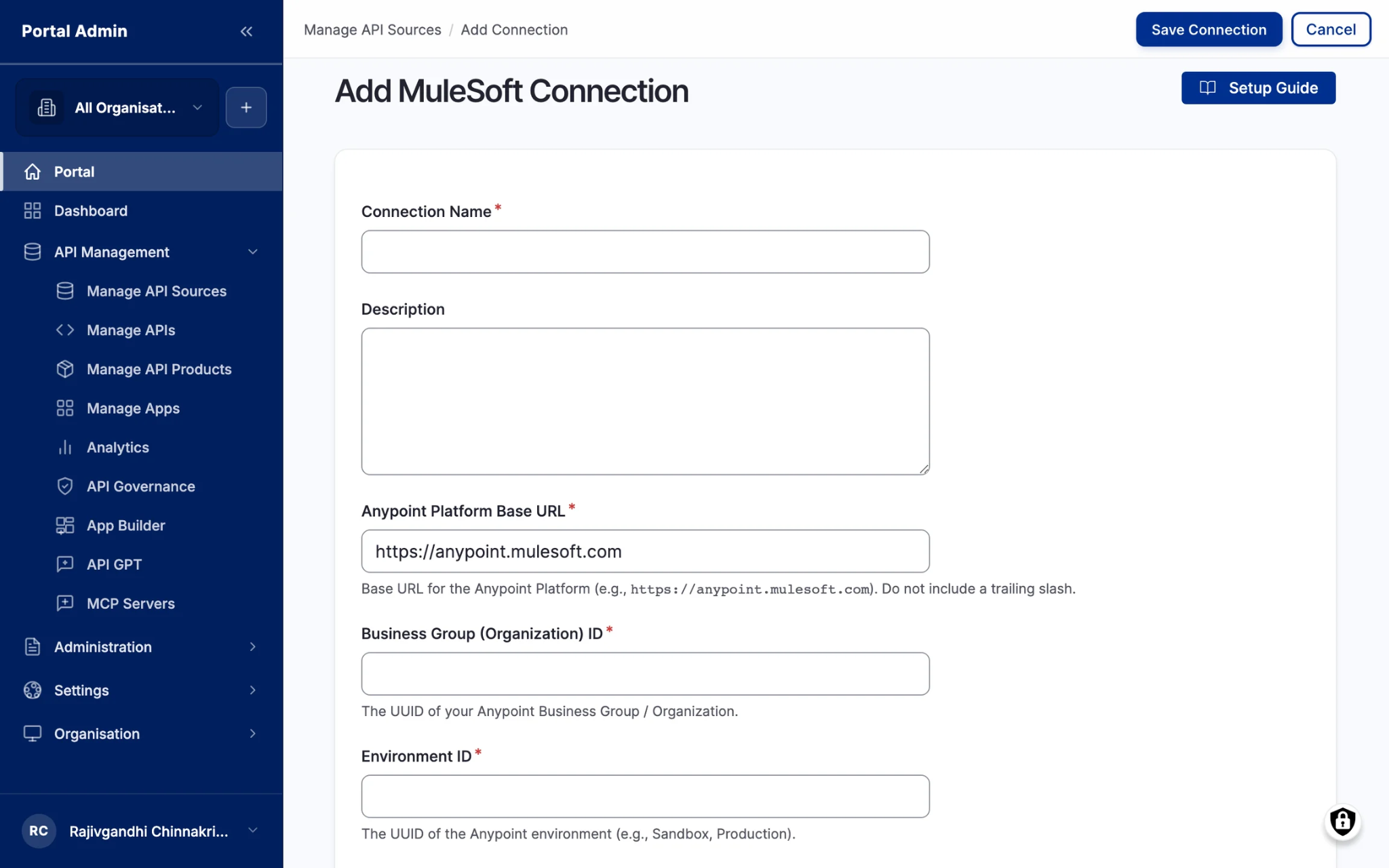
- In the portal’s left sidebar, select Manage API Sources under API Management.
- Under API Gateways, click the MuleSoft tile.
- Enter a Connection Name and an optional Description.
- Enter the Anypoint Platform Base URL, with no trailing slash.
- Enter the Business Group (Organization) ID and the matching Environment ID.
- Choose the Authentication Method. For Client ID & Secret, enter the Connected App’s Client ID and Client Secret. For Username & Password, enter the service user’s details.
- Click Test connection and wait for the banner. Green means the marketplace authenticated.
- Click Save Connection. The connection appears under Existing API Sources with Import APIs, Edit and Delete Connection actions.
Saving does not import APIs. When you are ready, click Import APIs on the saved connection.
What should you do if Test connection fails?
A failed test usually means a mismatched Business Group and Environment pair, or a Connected App without the Exchange Viewer scope. Test connection checks the credentials. It also checks that the organization and environment IDs resolve. The red banner names the step that failed.
You can save a connection that fails the test, but it cannot import APIs. Fix the field the banner names and test again until it turns green.
How do you rotate credentials or remove the connection later?
- Rotate: click Edit in Existing API Sources. Secret fields come back blank, so paste the new secret, test, then save. Imported APIs and subscriptions stay in place. A 90-day rotation cycle is a sensible default.
- Remove: Delete Connection unlinks every API imported from it. Apps subscribed to those APIs lose access on the next request. Check Manage APIs for live subscriptions first.
Frequently asked questions
1. What scope does a MuleSoft Connected App need for an API marketplace?
One read-only scope: Exchange Viewer, granted for the environments you will import. Set the app to act on its own behalf with client credentials. No write scopes are needed to discover and import APIs.
2. Where do I find my MuleSoft Business Group ID?
Go to Access Management > Business Groups in Anypoint Platform and choose the organization. Open the Settings tab and copy the Business Group ID. It is a UUID.
3. Which Anypoint Base URL should I use for an EU tenant?
Use https://eu1.anypoint.mulesoft.com if your tenant runs on the EU control plane. Otherwise use https://anypoint.mulesoft.com. Never add a trailing slash.
4. Should I use a Connected App or a username and password for MuleSoft?
Use a Connected App. You can audit and revoke it on its own, and it does not depend on one person’s login. If you must use a username and password, create a dedicated service user.
5. Can I connect several MuleSoft environments to one marketplace?
Yes. Add one connection per Business Group and Environment pair, such as Sandbox and Production. You can add any number of connections, including AWS and Azure gateways.
What happens after you connect MuleSoft Anypoint to the API marketplace?
Your MuleSoft APIs join one catalog with APIs from every other gateway you run. Developers search one portal instead of several consoles. Your platform team reviews and publishes from one place.
That matters at scale. IDC’s June 2024 AI-Enhanced Connectivity Automation Survey found 40% of organizations run at least two API management tools. Nearly a third of API teams run multiple gateways, according to Postman’s 2024 State of the API Report.
Teams using DigitalAPI bring MuleSoft APIs into a single catalog, then run API governance checks and publish them from the same portal..
Your next steps:
- Import your APIs: Importing APIs
- Connect your other gateways: :AWS API Gateway connection guide and Azure API Management connection guide.
- Go Deeper: How to catalog MuleSoft APIs the right way
- Go Deeper: Why MuleSoft teams look beyond the default portal
- See DigitalAPI's Product: DigitalAPI API Marketplace
- Learn the bigger picture: What is an API marketplace?
- See every supported gateway: Gateway connections reference
See how DigitalAPI turns APIs from MuleSoft into one searchable marketplace. Request a demo
Dhayalan Subramanian is Associate Director, Product Growth at DigitalAPI, where he leads go-to-market and product growth for the company’s multi-gateway API management platform. His work focuses on helping large enterprises and mid-market cloud companies consolidate APIs across AWS, Azure, Apigee, Kong, MuleSoft, and other gateways into a single control plane for governance, discovery, monetization, and agent consumption.
Dhayalan brings 14+ years of experience across product strategy, enterprise architecture, and engineering leadership. Earlier in his career, he held senior roles at Encora (as Associate Architect and Technical Manager), Mindtree (Technology Lead), Tech Mahindra (Technical Lead), and Primus Analytics, where he designed integration frameworks and delivered enterprise-grade digital platforms for global customers.
At DigitalAPI, he works directly with platform, integration, and developer experience leaders at Fortune 500 organizations to operationalize unified API catalogs, developer portals, and MCP-ready APIs. He writes regularly on API developer experience, API governance, and AI agent architectures.


One email a fortnight. Worth opening.
A short digest of what we're writing, what we're learning from customers, and the handful of links you'd actually want from us. No tracking pixels.